Using Client-Side SSL Certificate when Relaying To Microsoft 365/Office 365 Part 2 of 3
Microsoft offers the following methods for relaying messages from MFP devices or on-premises application servers. The methods are described in detail How to set up a multifunction device or application to send email using Microsoft 365 or Office 365.
This is the second part of a three-part series that compares the different methods Microsoft uses to accept emails from your on-premise SMTP server. The remainder of this page talks about Configuring a TLS certificate-based connector for SMTP relay.
What is a Client-Side SSL Certificate?
A client-side SSL certificate for mutual TLS (mTLS) is a digital certificate that the client uses to prove its identity to the server. In a standard TLS (formerly SSL) connection, only the server presents a certificate to the client for verification; with mTLS, this process is mutual, meaning both parties must authenticate each other before a secure connection is established. Therefore, by using a client-side certificate, Microsoft can confirm that the server from which it receives emails belongs to you, thereby allowing that server to relay messages.
Consider the following scenario:
- Assume your domain name is
contoso.com(borrowed from Microsoft's documents) - You need to send an email from: printer@contoso.com, to: user1@gmail.com, and user2@contoso.com from a server, printer, or any other device running inside your network. Notice one of the recipient is a Gmail address, but you want that message to go through Microsoft's SMTP.
Prerequisites
- Configure your Microsoft account as instructed on this page .
- You need an SSL certificate for the hostname contoso.com or have a wildcard certificate like *.contoso.com. The hostname in this certificate must match the domain name in the sender's email address.
- A trusted authority must sign the certificate. You cannot use a self-signed certificate.
- This page assumes you already have an SSL certificate for contoso.com in use on your website.
Configuration Steps
- Export the SSL certificate using the instructions on this page. Ensure you export the private key and extended properties. Once done, you will end up with a *.pfx file. You must specify a password when exporting this certificate. You will need this password later.
- Log in to the Xeams web interface as the administrator
- Click Server Configuration > Client-Side SSL (mTLS)
- Enter the password of the certificate that you specified when exporting the certificate
- Click the Browse button to select the *.pfx file and click the Proceed button.
Xeams will display your certificate details after you upload the file, and will use this certificate to authenticate with Microsoft when relaying emails.
Important
Do NOT use the Smart Host feature in Xeams if you want to use this method. Instead, go to
Server Configuration > SMTP Configuration, select the Domains tab, and ensure the Forward To
value for your domain points to your Microsoft hostname, such as contoso-com.mail.protection.outlook.com. Messages must go out on port 25.
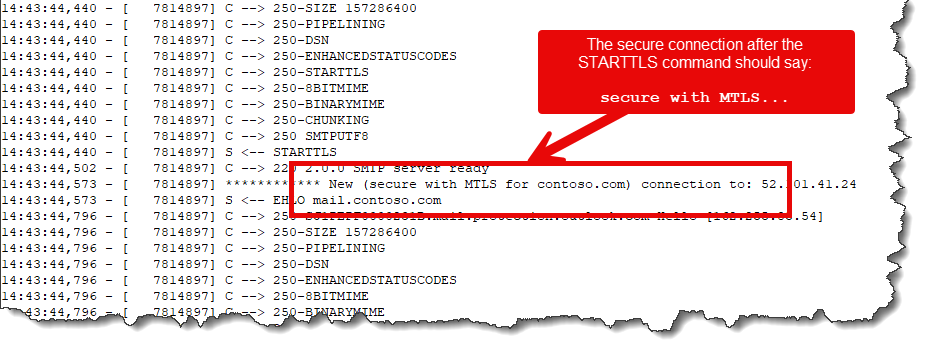
Confirming the Certificate is Being Used
Use the following steps to confirm your client-side certificate is being utitized:
- Assume you have uploaded a certificate for
contoso.com. - Using Email Sender, compose a new email with the following parameters:
- To:
- Any email hosted on Microsoft
- SMTP Server:
- Your Xeams hostname
- User/PWD:
- Leave blank
- From:
- YourEmail@contoso.com (replace the domain with your domain)
- Subject/Body:
- Put any arbitrary values
The goal is to send a test email from Email Sender to Xeams, which will then relay that message through Microsoft.
- Once the email is sent, confirm the Xeams receives it through the Live Monitor (Tools > Live Monitor)
- Click Tools > View Logs, select
SMTPOutboundConversation.logand go the end. This shows the communication log between Xeams and Microsoft. You should see a similar log file the image below.